
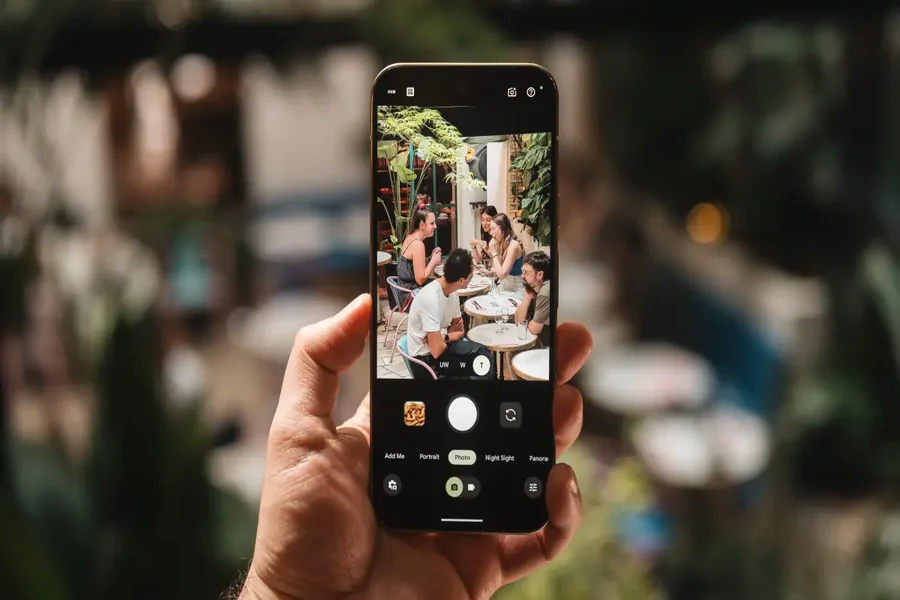
Google Pixel AI Photography Features are changing how people capture, edit, and share pictures using their smartphones. Google’s Pixel devices combine advanced camera hardware with artificial intelligence to improve image quality, balance lighting, enhance portraits, and simplify photo editing. These tools make it easier for beginners to take attractive pictures while giving experienced photographers more creative control. Depending on the device and software version, users can access features that remove unwanted objects, improve group photos, brighten nighttime scenes, and adjust backgrounds. Understanding how these tools work can help you get more from your phone without relying on expensive cameras or complicated editing software. Whether you enjoy travel photography, family portraits, or social media content, Pixel’s AI-powered capabilities offer practical ways to improve everyday photography.
How Google Pixel AI Photography Works
Google Pixel smartphones use computational photography to combine information from camera sensors with software processing. Instead of relying only on the image captured by the lens, the phone analyzes image data and applies techniques designed to improve details, exposure, color, and overall appearance.
Artificial intelligence can help recognize scenes, identify faces, detect subjects, and determine which adjustments may improve a photograph. The exact processing methods and available features depend on the Pixel model, camera hardware, and installed software.
One important advantage is automatic image enhancement. When you photograph a person in difficult lighting, the camera may balance bright and dark areas to preserve more visible detail. This can help create an image that looks closer to what you intended to capture.
Pixel photography tools can also make complicated tasks easier. For example, some features allow you to change the appearance of a picture after taking it rather than requiring you to repeat the shot. Other tools help improve group photographs or make nighttime scenes more visible.
However, AI processing does not guarantee perfect results. Strong processing can occasionally produce unnatural textures, inconsistent details, or unrealistic colors. The best approach is to use these tools as helpful assistants while paying attention to lighting, composition, and the original scene.
Best AI Photography Features on Google Pixel
Google offers several photography tools designed to improve both image capture and post-processing. Their availability varies by model, region, language, and software version, so check your phone’s camera and editing menus to see which features are supported.
Magic Editor is an AI-assisted editing feature available through Google Photos on supported devices. It allows users to make selected changes to photographs that go beyond traditional brightness and color adjustments.
Depending on the available version, you may be able to reposition or resize certain subjects, adjust parts of a scene, or modify the appearance of the background. This can be useful when a photograph is well composed overall but contains a distracting element or needs a different visual balance.
For example, if a person appears too close to the edge of a picture, supported editing tools may help reposition the subject and generate surrounding image content. Results vary, especially when the software must reconstruct complicated backgrounds.
Magic Editor is useful for creative adjustments, but edited images should be reviewed carefully. AI-generated details may not perfectly match the original environment.
Best Take is designed to improve group photographs by helping users select suitable facial expressions from a series of similar pictures. It is especially useful when several people are photographed together and someone happens to blink or look away.
Instead of relying on a single frame, the feature can use compatible images captured around the same moment to help create a more satisfying group photograph.
This can save time during family gatherings, celebrations, and trips with friends. It is particularly valuable when taking another photograph is difficult or when people cannot easily return to their original positions.
The feature requires supported devices and compatible images. It should not be assumed to work with every photograph or every Pixel model.
Night Sight helps Pixel users photograph scenes in low-light conditions. It uses computational photography to improve visibility and preserve details in situations where ordinary camera settings may produce dark or noisy images.
This feature can be useful when photographing city streets, evening events, buildings, or outdoor scenes after sunset. Depending on the device, Night Sight may combine multiple exposures to improve the final result.
For better results, hold the phone steadily and avoid moving the subject unnecessarily while the photograph is being captured. Although Night Sight can improve low-light photography, it cannot eliminate every limitation caused by darkness or movement.
Portrait photography is another area where computational processing can make a noticeable difference. Supported Pixel models can separate a subject from the background to create a depth effect, helping the person stand out.
Image processing can also help balance skin tones and preserve facial details in different lighting conditions. These capabilities are useful for professional profiles, family pictures, and casual portraits.
The quality of the result depends on lighting, subject movement, and the complexity of the background. Hair, glasses, and objects near the edges of a person can sometimes make subject separation more difficult.
For natural-looking portraits, use soft lighting and avoid excessive background blur. Small adjustments often produce a more realistic result than applying the strongest available effect.
AI Photo Editing and Creative Improvements
AI photography is not limited to capturing an image. Editing tools can help users correct common problems, improve composition, and create different visual styles without learning complex desktop software.
Google Photos provides a convenient place to organize and edit photographs. Depending on your device and account, its editing features may include Magic Eraser, Magic Editor, portrait adjustments, and other AI-assisted tools.
Magic Eraser can help remove unwanted distractions from a photograph. For example, you may be able to remove a small object or background distraction that draws attention away from the main subject. The software attempts to fill the affected area using surrounding visual information.
This is particularly useful for travel pictures and outdoor photography, where people or objects can unexpectedly appear in the background. However, removing large objects or complex details can leave visible imperfections, so inspect the edited result before sharing it.
Other editing tools allow you to adjust brightness, contrast, highlights, shadows, and color temperature. These conventional controls remain valuable because they provide more predictable adjustments than automatically generated changes.
If you want additional editing options, applications such as Snapseed and Adobe Lightroom can complement the Pixel camera experience. Snapseed is useful for selective adjustments and simple corrections, while Lightroom offers more detailed color grading and exposure controls.
For more smartphone tips, Pixel-related information, and technology resources, you can visit pixelspinx. It can serve as an additional resource when researching camera features, photo editing techniques, and ways to get more value from your smartphone.
Before using AI editing, consider keeping the original image. This allows you to compare versions and reverse changes if the result looks unnatural. It is also worth remembering that generated edits can alter the appearance of a scene, so use them thoughtfully when photographs are intended to document important events accurately.
Tips for Getting Better Results With Pixel AI
Even with advanced artificial intelligence, good photography still begins with a well-captured image. Simple habits can help Pixel’s camera and editing tools produce more attractive results.
Start by cleaning the camera lens. Fingerprints and dust can reduce contrast and create unwanted reflections, particularly when photographing bright lights at night. A clean lens helps the camera capture clearer images.
Next, pay attention to lighting. Soft natural light often works well for portraits, while early morning and late afternoon can create appealing outdoor photographs. When shooting indoors, try positioning your subject near a window rather than relying entirely on harsh overhead lighting.
Use the camera’s focus and exposure controls when available. Tapping the main subject can help the camera determine where to focus. Adjusting brightness may also help preserve details in bright skies or dark areas.
When photographing groups, take several pictures rather than relying on a single shot. This provides more options for choosing the best expressions and can make compatible features such as Best Take more useful.
Avoid applying every available AI effect to the same photograph. Excessive object removal, artificial background changes, and strong portrait adjustments can make the image appear unrealistic. Start with small edits and compare the result with the original.
It is also helpful to understand your device’s limitations. Different Pixel generations support different camera features, processing capabilities, and editing tools. Some AI features require an internet connection, a compatible Google Photos version, or particular device specifications.
Finally, review privacy and storage settings before using cloud-based services. Check which photographs are backed up, understand the permissions requested by editing applications, and avoid sharing sensitive images with services you do not trust.
Final Thought
Google Pixel AI Photography Features make smartphone photography more convenient by combining intelligent image processing with practical editing tools. Features such as Magic Editor, Best Take, Night Sight, and portrait enhancements can help users improve photographs without advanced technical skills.
However, the best results come from combining AI tools with good lighting, careful composition, and thoughtful editing. Not every feature is available on every Pixel device, so check your model’s supported capabilities before relying on a particular tool.
Whether you are taking family pictures, capturing travel memories, or creating social media content, Pixel’s photography features can help you work more creatively. Start with the built-in camera, experiment with supported editing tools, and keep original photographs whenever possible. With practice, you can produce attractive images while maintaining a natural and personal photography style.
FAQs
1. What are Google Pixel AI Photography Features?
They are camera and editing capabilities that use computational photography and artificial intelligence to improve images, enhance portraits, capture low-light scenes, and simplify photo editing.
2. What is Magic Editor on Google Pixel?
Magic Editor is an AI-assisted Google Photos editing feature that can help users reposition subjects, adjust parts of an image, and make creative changes on supported devices.
3. Can Google Pixel AI remove unwanted objects from photos?
Yes, supported Pixel devices can use Magic Eraser and other compatible editing tools to remove unwanted objects or distractions from photographs.
4. Does Night Sight improve Google Pixel nighttime photography?
Yes, Night Sight uses computational photography to improve visibility and preserve detail in low-light scenes, although results depend on movement, lighting, and the phone model.
5. Is Best Take available on every Google Pixel phone?
No, Best Take is available only on supported Pixel models and compatible software versions. Check your device’s camera or Google Photos features for availability.
6. Do Google Pixel AI photo features require an internet connection?
Some AI editing features may require an internet connection, while many standard camera functions work offline. Requirements vary by feature, device, and software version.
7. Can AI editing make Google Pixel photos look unnatural?
Yes, excessive editing can create unrealistic details, colors, or backgrounds. Using subtle adjustments and comparing edited images with the originals can help maintain natural-looking results.
